Data workspace
The Data workspace is where data professionals connect, prepare, and manage the data that powers analytics in ThoughtSpot. If you are an analyst, data engineer, or BI developer, this is where you work with data sources, build models, and publish governed datasets that your organization can search and explore in the Insights workspace.
The left navigation panel gives you quick access to everything you need.
What you can do from the Data workspace
Connections
Connections is where you link ThoughtSpot to your external data sources, including cloud data warehouses such as Snowflake, Google BigQuery, Amazon Redshift, and Databricks, as well as other supported databases and file sources.
From the Connections page, you can:
-
Add a new connection to an external data warehouse
-
Edit or remap existing connections
-
Delete connections that are no longer needed
-
Apply or remove tags on connections for easier organization
Each connection you create becomes the foundation for the tables, models, and views you build in ThoughtSpot.
Data objects
Data Objects lists all the data sources available to you in ThoughtSpot. Data objects come in three types:
| Tables |
Raw tables imported or linked from a connected data source. |
| Models |
The primary data object for search and analytics in ThoughtSpot. Models define the relationships, column names, synonyms, and row-level security rules that make data accessible and trustworthy for business users. |
| Views |
Saved SQL-based definitions that produce a virtual table. SQL views fall under the Views category. |
Most users work primarily with Models and Views. Models are the most powerful and commonly used data source for searching in ThoughtSpot.
Analyst Studio
Analyst Studio is ThoughtSpot’s intelligent data preparation and advanced analytics environment. It bridges the gap between raw data and governed insights by giving data teams a versatile toolkit (SQL, Python, R, and spreadsheets) to explore, transform, and prepare data before it reaches end users.
Analyst Studio is organized around two core concepts:
| Collections |
Personal or shared workspaces that group your analytical work. Every Report you create is added to a Collection automatically. |
| Reports |
The primary analytical unit in Analyst Studio. Open or create a Report to start querying, transforming, or visualizing data using SQL, Python, R, or spreadsheet-style analysis. |
Analyst Studio is designed for data analysts, BI professionals, and data engineers who need to prepare AI-ready datasets, manage cloud costs, and collaborate across technical and business teams, all within the same ThoughtSpot platform.
Who uses the Data workspace?
The Data workspace is primarily used by:
-
Data engineers: connecting data warehouses, managing tables, and maintaining data pipelines
-
Data analysts and BI developers: building models, writing SQL and Python transformations in Analyst Studio, and publishing datasets
-
ThoughtSpot administrators: overseeing connections and data object governance
Business users and analysts who consume data do not typically need to visit the Data workspace. Their entry point is the Insights workspace, where they search and explore the governed data that the Data workspace produces.
Note on access
Your access to sections of the Data workspace depends on the privileges assigned to your user group by your ThoughtSpot administrator. If a section described here is not visible in your instance, contact your administrator to request the appropriate data management privileges.
Use the Data workspace to manage data sources.
Data workspace page
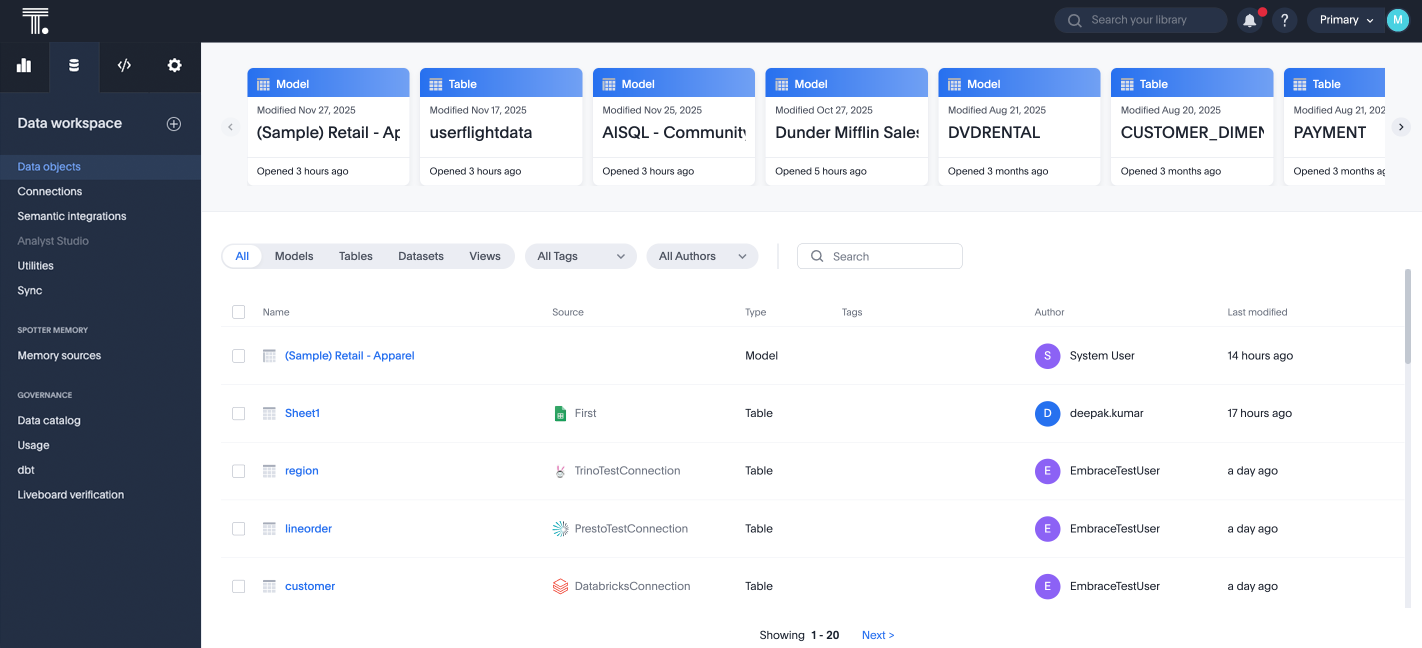
The Data workspace page lists all the data sources available to you. There are several types of data sources that you may see in the data list. They are tables, Models, and views. SQL views fall under the view category. Most users see only Models and views. Models are the most powerful and commonly used data sources for searching.
Above the list of data sources, you can see quick links to objects you recently viewed. These links tell you when the object was last modified, and when you last viewed it.
Data source types
| Name | Definition | Created by |
|---|---|---|
Table |
Raw table loaded by an Administrator |
Administrators |
Model |
Collection of related tables optimized for searching (like standard concept of a view) |
Anyone with Can manage data permission |
View |
Table saved as a view by a user through the Save as view option on a data search |
Anyone with Can manage data permission |
SQL View |
SQL query result saved as a SQL view by a user |
Anyone with Can manage data permission |
Select a data source name to view its details. If you have Can edit privileges, you can also edit it.
Filter and search data sources
Use the filters and the search bar at the top of the list of data sources to find the data you are interested in.
Filter
-
By source type: Filter by object type (Models, Tables, Datasets, Views) using a filter modal with multi-select support.
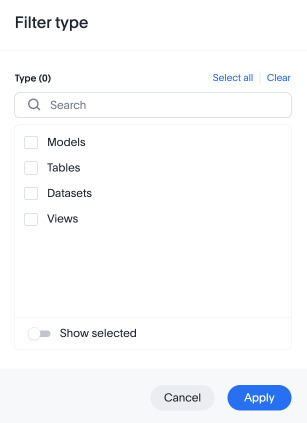
Selected filters appear as dismissible filter chips above the table.
-
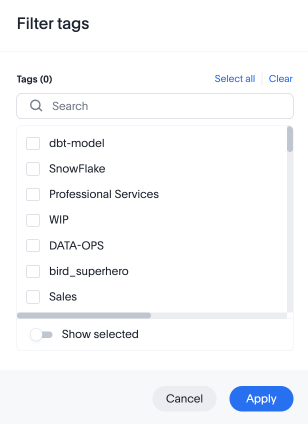
By tag
-
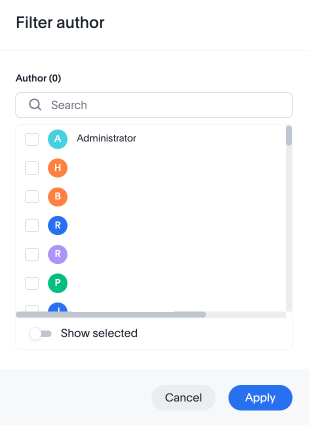
By author: Filter by one or more authors simultaneously.
Sort data sources
You can sort the data sources that display on the home page of the Data workspace in the following ways:
-
Alphabetically by author: You can sort by author alphabetically, either ascending or descending. Select Author, above the list of recently modified data sources. To see ascending order, select Author again.
-
Alphabetically by name: You can sort by object name alphabetically, either ascending or descending. Select Name, above the list of recently viewed data sources. To see ascending order, select Name again.
-
By how recently anyone modified the object: You can sort by how recently anyone modified the object, either ascending or descending. Select Last modified, above the list of recently modified data sources. To see ascending order, select Last modified again.
To see more objects, scroll down to the bottom of the page and select Next. ThoughtSpot displays 20 objects on each page.
These changes do not persist across sessions. If you sign out and sign back in, the view returns to the default.
Row-level actions
Each object row now has a More menu that exposes per-object actions without requiring you to select the row’s check box first:
-
Add to Collection
-
Share
-
Delete
-
Edit tags
-
Export TML
-
Edit TML
-
Publish
-
Manage publishing
-
Unpublish
Bulk actions
You can perform bulk actions on the objects in the data source list. To perform bulk actions, follow these steps:
-
Select the check boxes next to the object names. To perform a bulk action on all 20 objects on the page, select the check box at the top of the list.
-
At the top of the list of data sources, several buttons appear. You can share objects, delete them, apply or remove tags, export them as TML files, or edit them as TML files.
| This replaces the previous Data Workspace list view. The underlying data is unchanged; only the presentation and interaction model have been updated. |
Data connections
The Data workspace also contains information about your data connections.
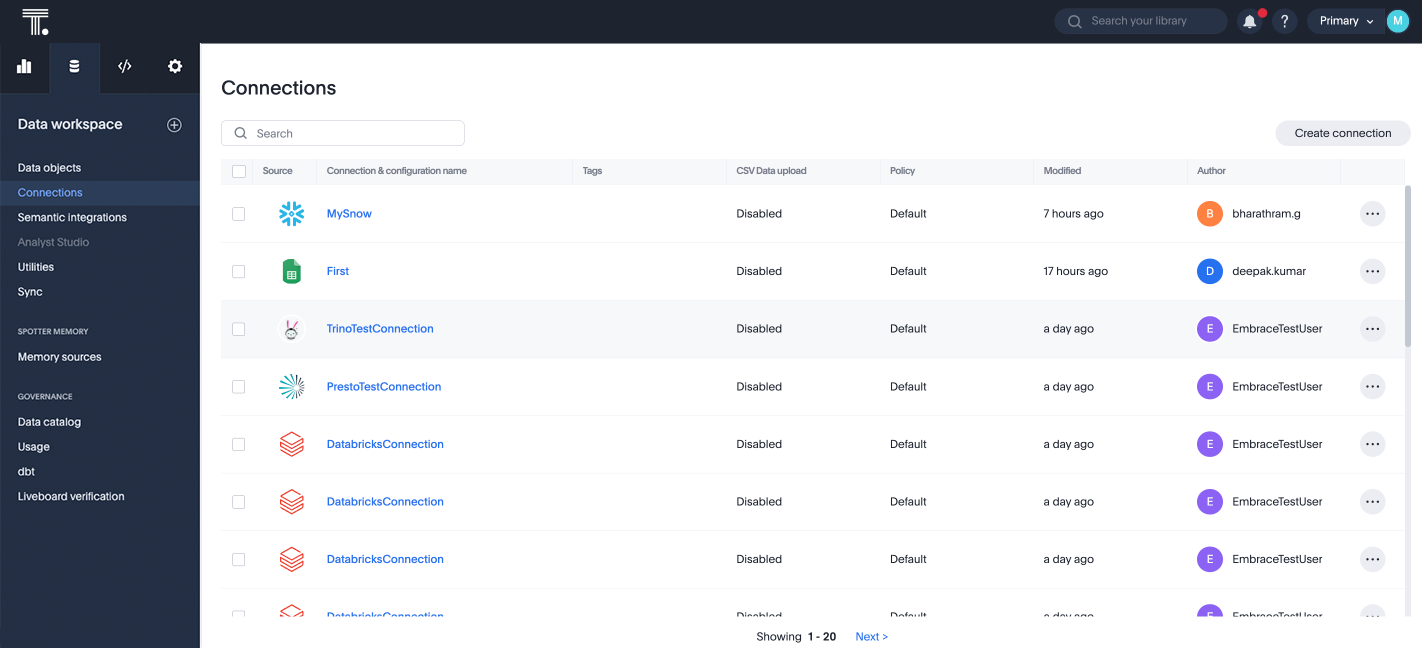
Your connections appear under Connections in the side navigation bar of the Data workspace. From the Connections page, you can add, edit, remap, and delete connections, and apply or remove tags.
To connect to your data in an external data warehouse, see Data connections.
Add a connection
To add a connection, select the icon for the type of connection you would like to add, such as Snowflake or Amazon Redshift. If you do not see your data warehouse, and it is one of ThoughtSpot’s supported data warehouses, select Others.
You can also create a new connection by selecting + Create new in the left navigation bar, then selecting Connection.
Edit, remap, or delete a connection
To edit, remap, or delete a connection, select the More menu  for the connection, and select the action you would like to take.
Bulk actions
To bulk delete or apply tags in bulk, follow these steps:
-
Select the empty boxes next to the object names, or, if you would like to perform a bulk action on all 20 connections on the page, select the check box at the top of the list.
-
At the top of the list of connections, several buttons appear. You can delete the connections or apply or remove tags.
Filter connections
Use the filters and the search bar at the top of the list of connections to find the connection you are interested in. You can filter in the following ways:
-
By tag
-
By author
You can also use the search bar to find a specific connection, if you know its name.
Sort connections
You can sort the connections that display on the Connections page of the Data workspace in the following ways.
-
Alphabetically by author: You can sort by author alphabetically, either ascending or descending. Select Author, above the list of connections. To see ascending order, select Author again.
-
Alphabetically by connection name: You can sort by connection name alphabetically, either ascending or descending. Select Connection name, above the list of connections. To see ascending order, select Connection name again.
-
Alphabetically by connection type: You can sort by connection type alphabetically, either ascending or descending. Select Connection type, above the list of connections. To see ascending order, select Connection type again.
-
By how recently anyone modified the connection: You can sort by how recently anyone modified the connection, either ascending or descending. Select Modified, above the list of connections. To see ascending order, select Modified again.
-
By number of tables in the connection: You can sort by the number of tables in the connection, either ascending or descending. Select Tables, above the list of connections. To see ascending order, select Tables again.
To see more connections, scroll down to the bottom of the page and select Next. ThoughtSpot displays 20 objects on each page.
These changes do not persist across sessions. If you sign out and sign back in, the view returns to the default.
Usage statistics
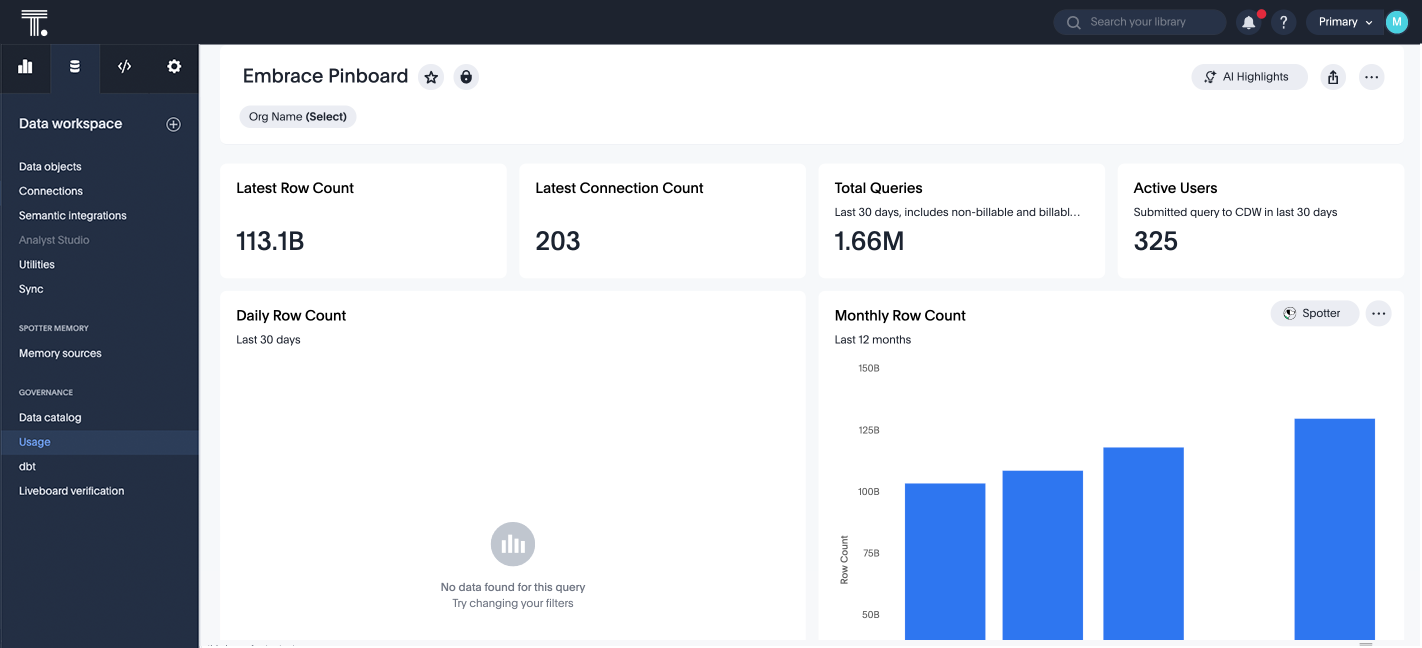
To view usage statistics for your connections, select Usage from the side navigation bar of the Data workspace. The Usage page shows the system Liveboard for connections, including monthly and daily row count, query count, and query performance per connection.
Utilities
The Utilities section of the Data workspace contains many of your additional workflows as a data engineer.
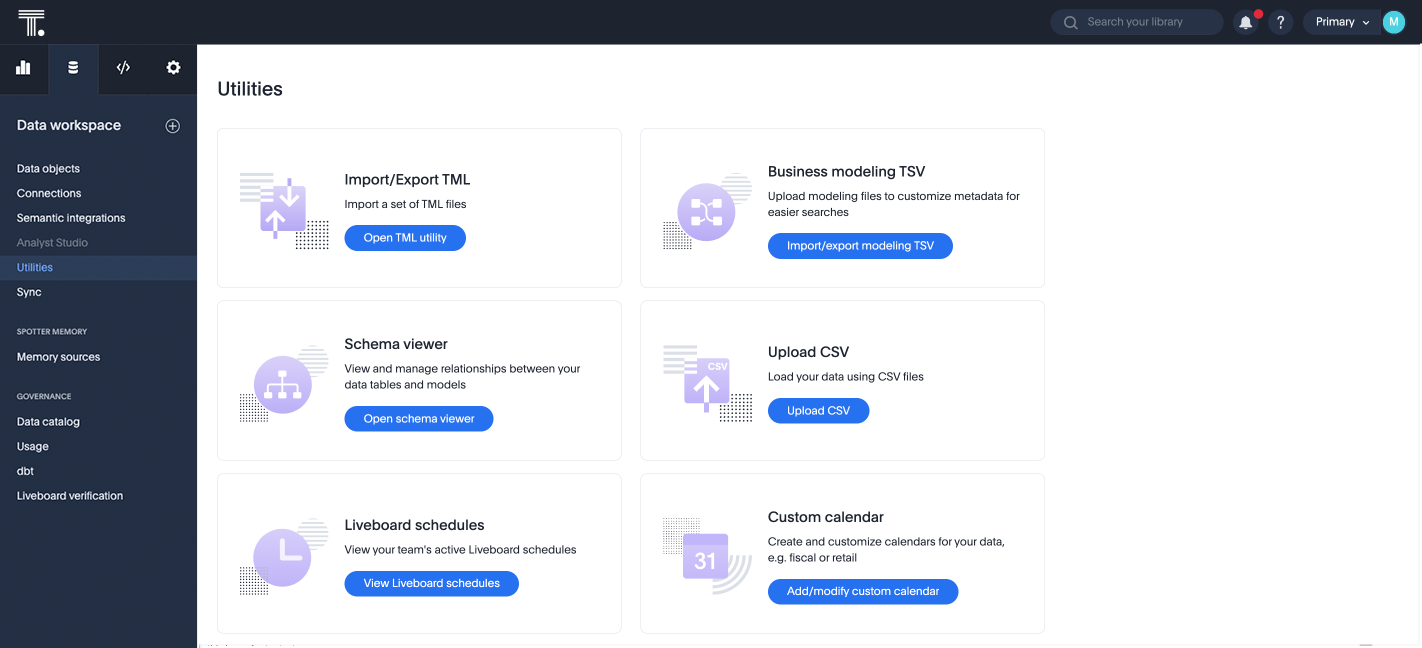
Here, you can accomplish the following tasks:
-
Import and export custom sets of TML files: Use the Import/Export TML tile
-
Edit the system-wide data model: Use the Business data model tile
-
View the system data schema: Use the Schema viewer tile
-
Manage Liveboard schedules: Use the Liveboard schedules tile
-
Manage the custom calendar: Use the Custom calendar tile
-
Integrate with dbt: Use the dbt Integration tile
AI and BI Stats
The TS: AI and BI Stats system Model reports product usage, adoption, and credit consumption across all Orgs, based on Query Stats. For details, see TS: AI and BI Stats.
Related information
Onboarding for analysts
Get a comprehensive look at how to create modern and dynamic dashboards for your organization.Import and export TML files
Export Models, Liveboards, and Answers in a human-readable format.ThoughtSpot Modeling Language
Modify a Model, Liveboard, or Answer in a flat-file format.