Define or edit a custom sort order for an Answer
Last updated: 08/20/2025
You can define a custom sort order for an Answer to sort columns in a specific order based on your business needs. To define a custom sort order for an Answer:
-
Select Answers on the left navigation bar.
-
Select the Answer you want to edit.
-
Click Column on the right menu.
-
Under Sort select Custom.
-
Click Edit custom sort order.

-
In the Custom sort screen, search for and select the columns that you want to sort on.
-
Click Save.
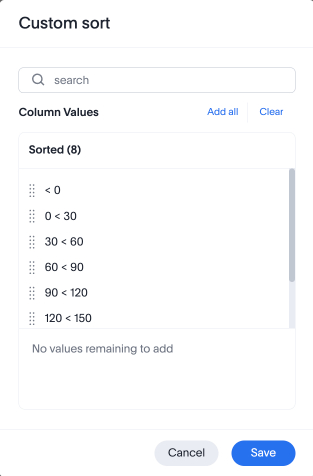
Users can define a custom sort order for any Answer. Sort order defined in the Answer overrides the sort order defined in the Model for that particular Answer.
| RLS is not applied to the string values defined in a custom sort order. |
Users can switch between Alphanumeric and Custom sort order in the Sort menu.
Was this page helpful?Give us feedback!


