Enabling Spotter
To enable Spotter search and other AI features for users in your organization, you must first enable AI features from the Admin portal, add Spotter privileges to the specific users or groups, and enable Spotter on your desired Model(s).
Turn on AI features for your instance
To turn on AI features for your instance, follow these steps:
-
Navigate to the Admin tab. If you have multiple Orgs in your instance, select All Orgs.
-
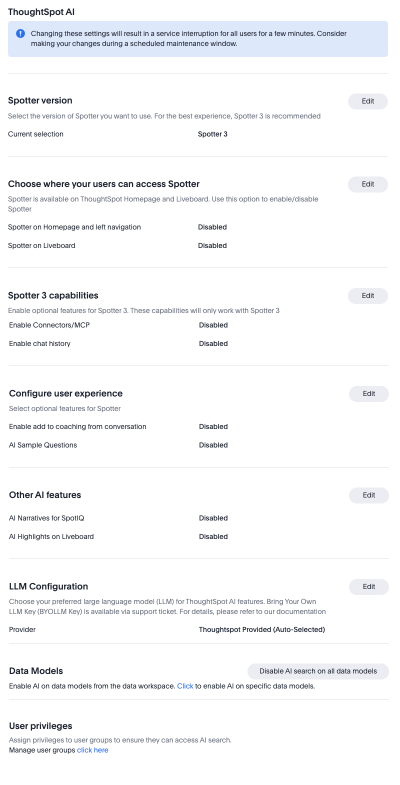
Select ThoughtSpot AI under the Application settings section in the left side menu.
-
From the Spotter version section, you can choose either Spotter 3, Spotter Agent (Spotter 2), Spotter Classic (Spotter 1) or Sage / Ask Sage (Deprecated).
-
From the Choose where your users can access Spotter section, you can enable Spotter on the home page and left navigation, and on Liveboards.
If you select Spotter under Choose Spotter experience, but do not enable Spotter on the home page or on Liveboards, users on your instance will not be able to access Spotter. -
From the Spotter 3 capabilities section, you can enable optional features included in this version.
Set Enable Connectors/MCP to enabled to allow Spotter to connect with external apps and draw data from them or push data to them from a conversation.
Set Enable chat history to enabled to let Spotter keep a record of each user’s chat history and allow users to revisit past interactions.
-
From the Configure user experience section, you can control users’ ability to coach Spotter, and allow Spotter to suggest questions for analysis.
Enable add to coaching from conversation to allow users to coach business terms and reference questions without leaving Spotter.
Enable AI Sample Questions to allow Spotter to suggest questions based on the selected data model below the search bar in the home page.
-
From the LLM Configuration section, you can choose which provider to use for ThoughtSpot’s AI features. We currently support ThoughtSpot Enabled (auto-select), Azure OpenAI, and Google Gemini (Early Access), and custom LLM gateways.
-
From the Data Models section, you can disable AI search on all data models. To enable AI on a data model, you need to access the individual Model from the Data workspace and turn it on.
-
From the User privileges section, you can click to be directed to Users and Groups in order to assign privileges.
Note that users or groups must have Can preview thoughtspot sage permissions to access Spotter.
-
To revert to the previous settings, click Reset configuration.
Enable Spotter for a user group
You can enable Spotter for a certain group, but each group member will use the version of Spotter selected by the admin under Spotter version. To give Spotter privileges to a certain user group, follow these steps:
-
Navigate to the Admin panel, either by clicking on the Admin button in the top menu or by selecting Admin from the app switcher icon.
-
If your instance has Orgs enabled, navigate to the Primary org tab in the left menu and select Groups under User management. Otherwise, select Groups under User management.
-
Select the name of the desired user group to open the Edit group pop-up.
-
Scroll to the Roles section and select the checkbox next to the can preview thoughtspot sage privilege. Click Review selection and Save.
Enable Spotter for a Liveboard
In order for users to access Spotter on a Liveboard visualization, the underlying data source must be enabled for Spotter. To enable a Model for Spotter, follow these steps:
-
Navigate to the Data workspace, either by selecting Data in the top menu bar or by selecting Data workspace from the app switcher icon.
-
Select the Model from the list in the Data workspace.
-
Click the More icon
 in the upper right corner and select Enable Spotter.
If Spotter is disabled on a certain Model, users will still see the Spotter icon on visualizations built on any dependent Liveboard. Clicking Spotter will result in an error message prompting users to ask an admin to turn on AI features for the data source. If none of the data models making up a Liveboard are enabled for Spotter, users will see the Answer Explorer option rather than the Spotter icon.
Security
Spotter respects all existing security measures, including row-level security and column-level security.
To access Spotter on a Model, three tiers of permissions are required. Spotter must be enabled for your instance, the Model must have Spotter enabled, and you must have Spotter user privileges.
Users without proper privileges see a pop-up message indicating "Spotter is not enabled for you."
Data shared with LLM
The Answer why questions feature is the only setting that shares data with the underlying LLM.
Enabling this feature allows Spotter to send query-related data, such as aggregated metrics and dimension values, to an LLM to identify the data points and generate explanations. Please ensure this complies with your organization’s policies. The data is not utilized for model training, and we maintain a zero-data retention policy with all our LLM providers.
For more information on how data is handled in Spotter 3, see Spotter 3 data handling.


