Chat history
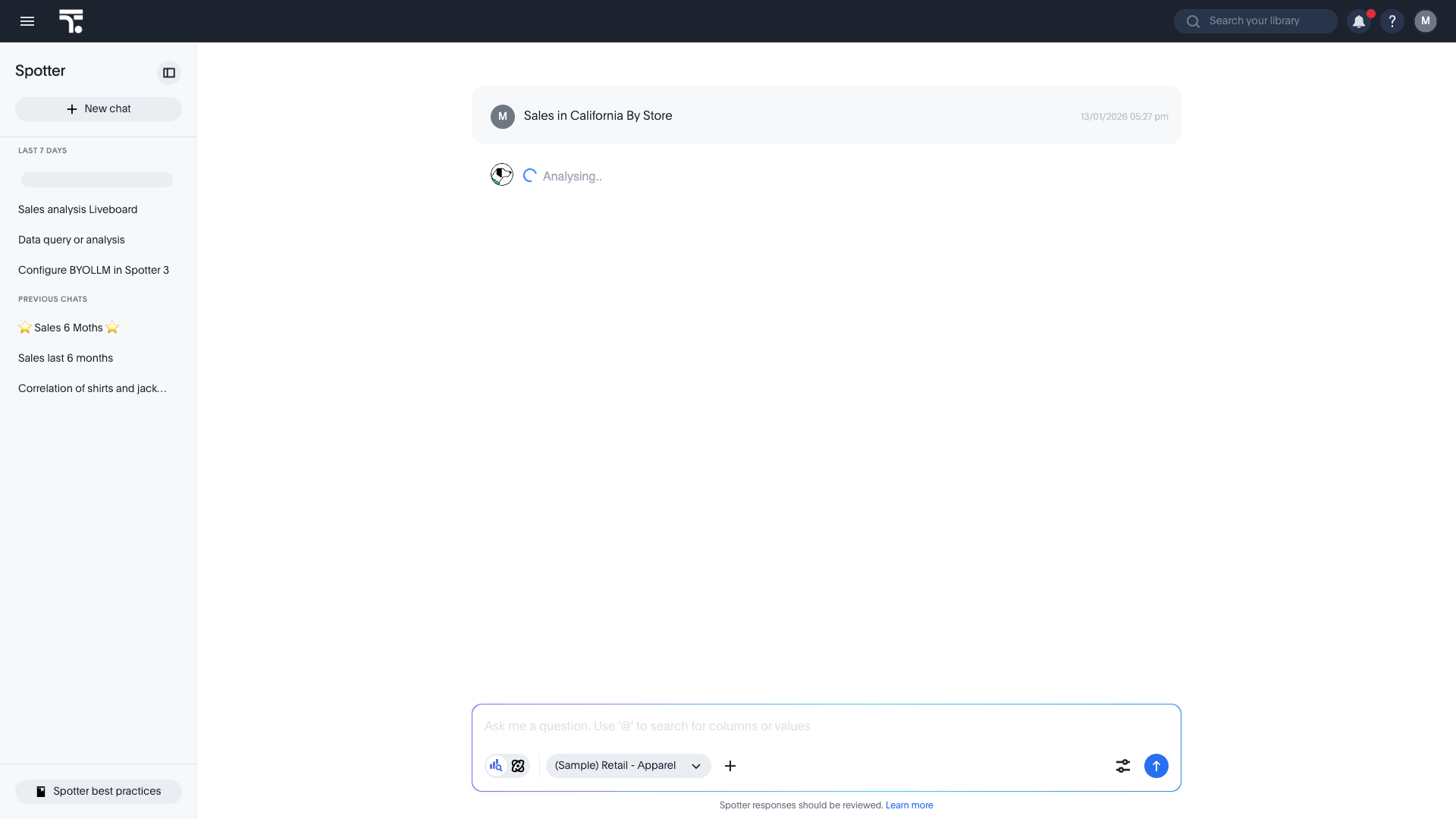
Saved chat history in Spotter 3 transforms your analytical workflow by preserving your chain of thought. This allows you to access previously done analysis and continue where you left off.
| This feature is available once your administrator enables it in the ThoughtSpot AI settings. |
When enabled, Spotter automatically saves your conversations in the collapsible left-hand rail. This feature ensures that your most valuable questions and analytical paths are always within reach, enabling an "analyze once, consume repeatedly" workflow.
Key benefits
- View your conversation history
-
Conversations are automatically titled based on your initial query and sorted by the most recent activity.
- Continue past conversations
-
Pick up right where you left off. Whether it’s been two days or two weeks. Your history stays intact so every follow-up feels like a natural continuation of the original conversation.
Manage your chat history
Organize and rename
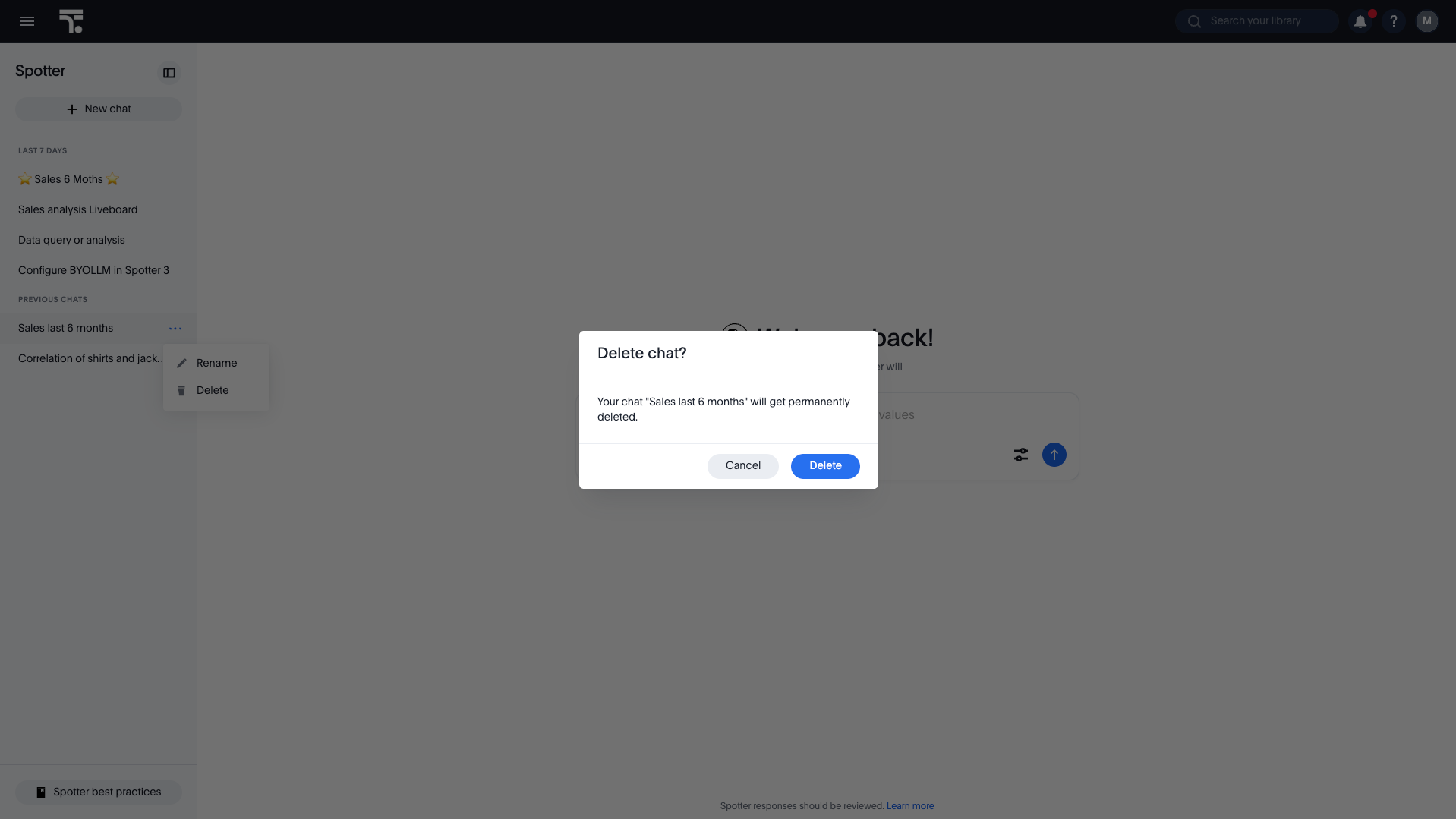
While Spotter provides an automatic title for every chat, you can personalize your history for faster reference by renaming a past conversation.
-
Hover over a conversation in the left-hand rail.
-
Select Rename.
-
Enter a descriptive title (for example, 🚀 Executive Review - Q1).
| Use emojis in your chat titles (for example, 📈, 🚀, 🎯) to visually categorize your threads in the left-hand rail for quicker navigation. |

Reliability and security
Spotter 3 prioritizes live data accuracy and security through the following system behaviors:
Live data fetching
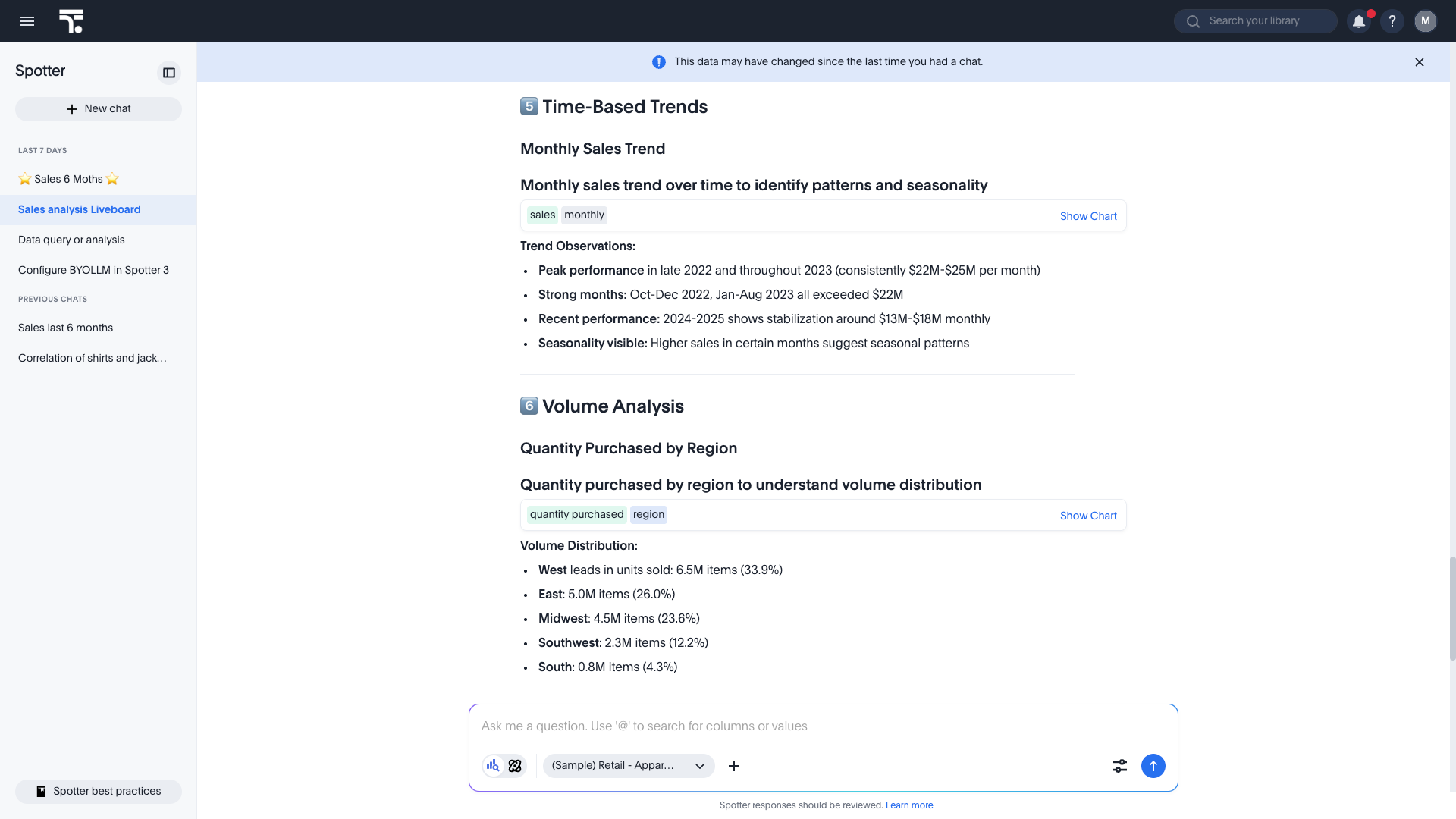
Spotter doesn’t store data or any impermanent artifacts like generated outputs as part of your history. It stores higher-level agent context. If you decide to reload a conversation by default, you are only shown the search tokens used to fetch the data that was analyzed by Spotter. Upon you reloading, Spotter refetches live data from the source every time you open a saved chat.
| Because data is refetched live rather than cached, you may see a notification that the data and the old saved analysis in the chat history are out of sync. |
Automated artifact regeneration
Spotter does not store impermanent artifacts (like temporary files or coding outputs) directly. Instead, it remembers the context in which they were generated.
- How it works
-
When you resume a conversation, Spotter automatically attempts to refetch and regenerate any temporary artifacts, such as generated files or specific coding outputs, to answer your follow-up queries.
Permission and governance
Your saved history is fully integrated with ThoughtSpot’s security model.
- Real-time privileges
-
Spotter re-verifies your data model access, row-level security, and column-level security rules on the data model every time a chat is loaded.
- Data redaction
-
If a column or row is redacted after your original conversation, the agent may still refer to the previous text analysis, but you will not be allowed to query that redacted data in follow-up questions, nor will Spotter be able to query the redacted information in the follow-up questions.


