Getting Started with Spotter
In this article you’ll learn the basics of using Spotter, including where you can use it, how it creates answers to your questions, and how you can edit those answers.
For details on recently added Spotter capabilities, see Spotter capabilities.
For information about the capabilities available in each version of Spotter, see Spotter versions.
Where you can use Spotter
Depending on how Spotter is enabled, you have the following options for using Spotter:
-
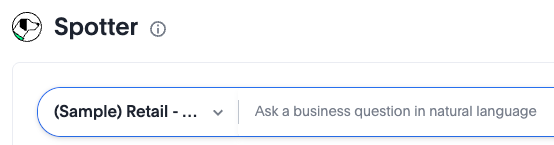
Go to Insights > Home, and ask a question in the Spotter question box at the top of the page.
-
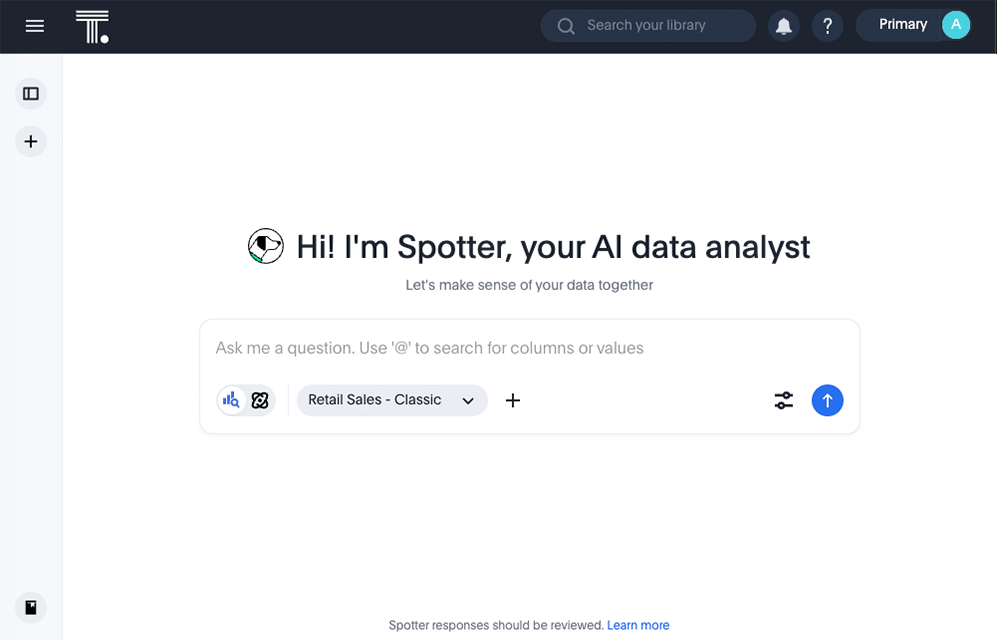
Go to Insights > Spotter, and ask a question.
-
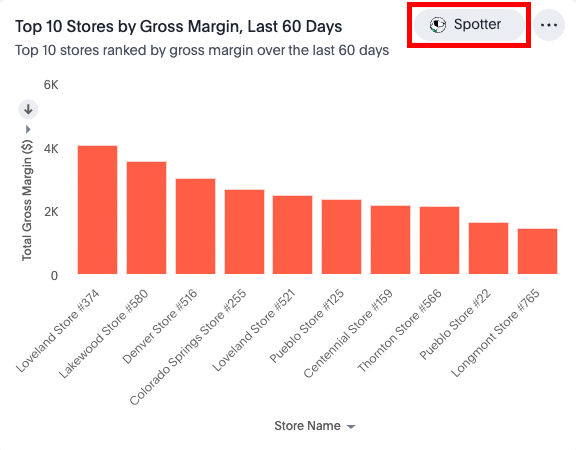
Click the Spotter button when hovering on any visualization pinned to a Liveboard.
If none of these options are available to you, contact your ThoughtSpot administrator.
How to use Spotter
To ask a question in Spotter, do the following:
-
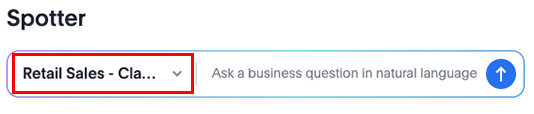
(Optional) If you’re asking from the ThoughtSpot home page or from the Insights > Spotter page, you can select a different data source before you ask your question, or let Auto mode help select the correct data source for the question (if Auto mode is enabled). For more information about Auto mode, see: Auto mode in Spotter.
-
Enter a question and click the submit button
 , or press the Enter key.
Spotter provides an AI-generated answer to the question.
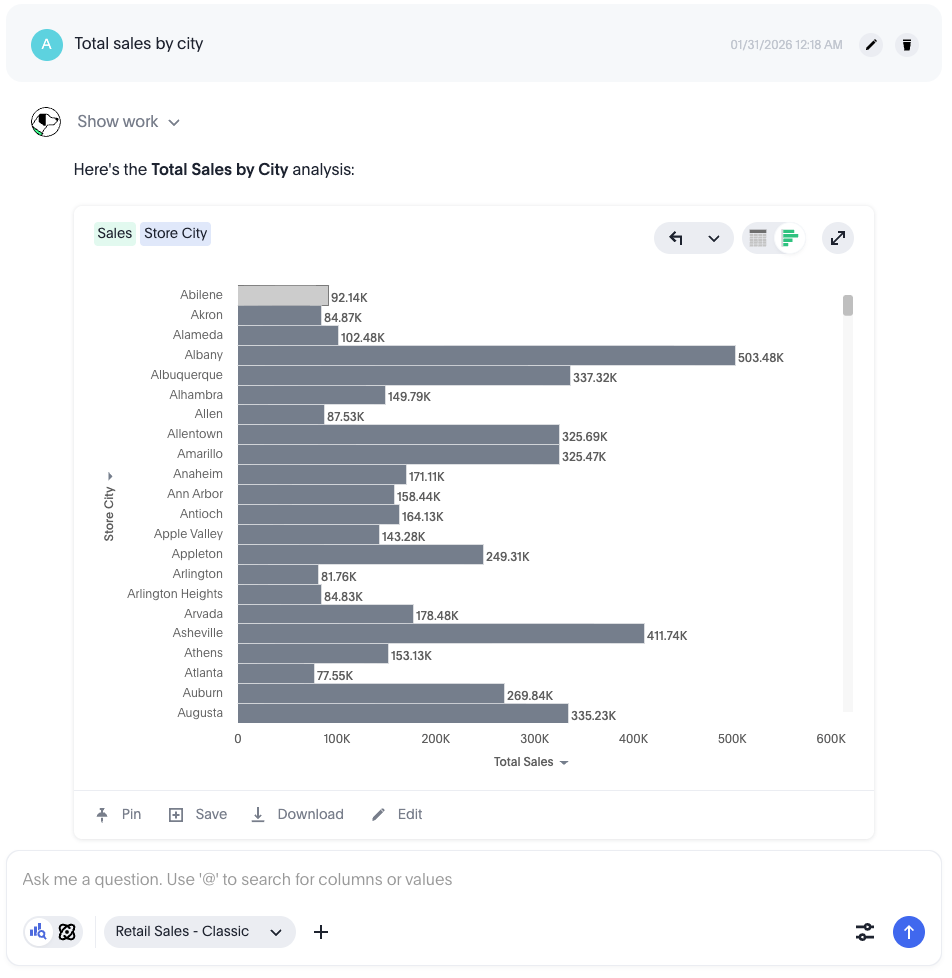
Here are common things you can do with Spotter’s answer:
-
To make changes to the answer, click the Edit button.
For more information, see Understanding a Spotter answer.
-
To switch between chart and table view, click the table/chart toggle button
 .
. -
To download the answer in PNG, XLSX, or CSV format, click Download.
-
To let Spotter know if it got the answer right, do the following:
-
To approve, click the check mark
 .
. -
To reject, click the X
 . Note that if Enable add to coaching from chat is enabled, you see a thumbs up and thumbs down icon.
For more information, see Give feedback on Spotter answers.
-
-
To save the answer, click the Save button. After you save your answer, you can access it later in the Answers page.
Spotter treats successive questions in a conversation as a follow-up. You can ask as many follow-up questions as you want.
If you want to ask a question to start a new analysis, click the Reset button. On the home page, Reset lets you start from a fresh question on the selected data source. On a Liveboard, Reset takes you back to the original visualization.
-
For complete details on the elements of the Spotter experience, see Spotter user interface.
Understanding a Spotter answer
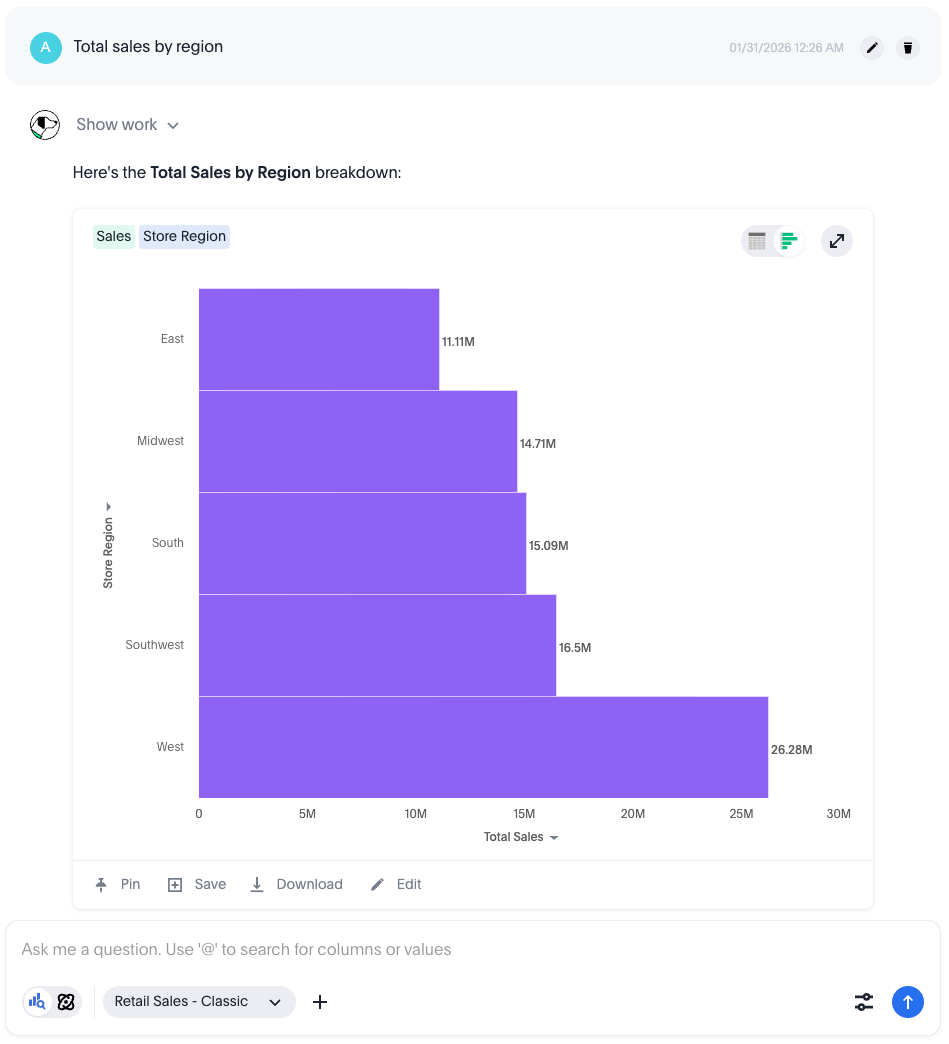
When Spotter answers your questions, it surfaces its response information in the form of the answer title and the search tokens used to construct the answer. When you ask a follow-up question, Spotter highlights the changes it made in search tokens to answer your question. You can also hover over formulas to see how they’re calculated, and edit them within Spotter.
To see a full-screen view of a visualization or table, click the expand arrows image in the top-right corner of the answer
Edit a Spotter answer
To edit a Spotter answer, click the Edit button above the Spotter question box. The Edit Answer window opens.
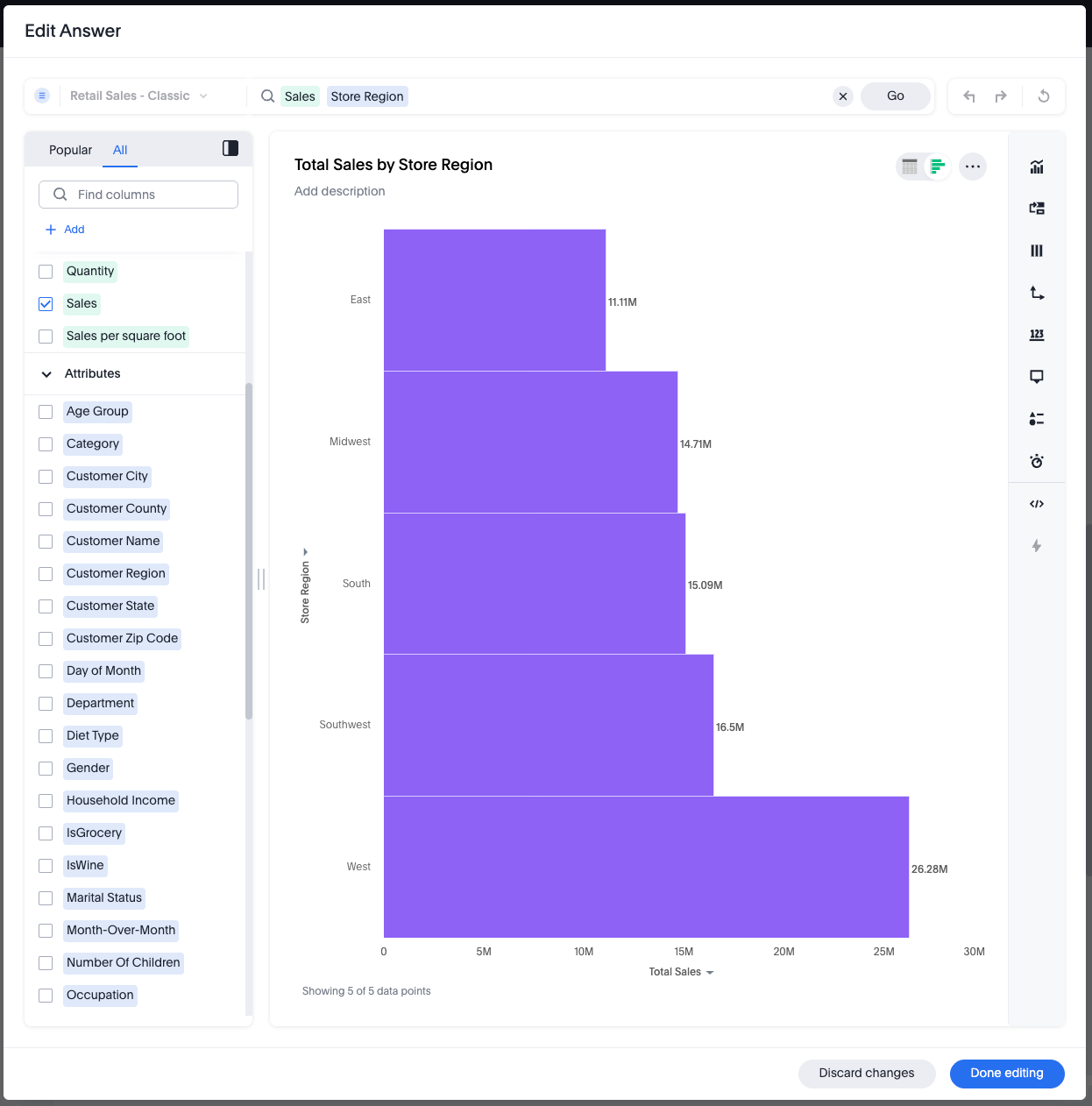
You can add or remove query tokens, change measures and attributes and even drill down by different attributes directly in the answer while in edit mode or even in the conversation itself.
To save your changes, click Done editing. Otherwise, click Discard changes.
Preview data
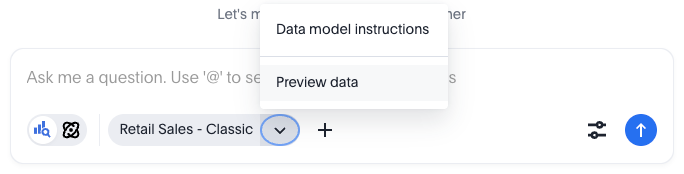
You can see sample rows of the underlying Model to get a sense of what columns are in the data set and how the sample rows look by clicking Preview data. Note that Preview data is not available for Models with chasm or fan traps, unless you contact ThoughtSpot Support.
Spotter user interface
This section provides details on the different elements of the Spotter user interface, and what you can do with them. Hover over the number of an interface element to see a short description of it. For more information, refer to the user interface descriptions table.
Data source
Shows the data source used for your conversation. Change the data source to start a new conversation.
User input
Enter your questions for Spotter, or provide instructions on how Spotter should modify the answer.
Pin
Pin the answer from your conversation to a Liveboard.
Save
Save the answer so you can review it later on the Answers page.
Download
Download the answer in PNG, XLSX, or CSV format.
Preview data
View rows from the data source to see which columns are available for analysis.
Edit Spotter
Modify the answer or visualization settings using our keyword-based search interface.
Approve or Reject
Notify your team if Spotter’s answer is useful or not.
Reset
Start a new conversation with Spotter. Use this option to start a new analysis with a fresh question.
Submit question
Send your question to Spotter.
Enlarge visualization
Expand the visualization to full screen.
Delete question
Delete your question and answer.
Edit question
Modify your question to generate a better answer. It is only available on the last question you asked.
Last user input
Shows a history of your questions in the conversation.
Spotter’s interpretation of your question
If the interpretation is not what you want, you can edit your question or ask a rephrased follow-up question.
Query tokens
Represent the simplified query, and show how the data in the answer was computed. Hover over a query token to see more information about it.
Interactive chart
You can interact with the chart just like in an Answer or a Liveboard.
If your ThoughtSpot administrator enables Add to coaching from chat, the check mark and X are replaced by the + Add to Coaching and "Is this useful?" buttons. For more information, see Add to Coaching.
Add to Coaching
Add reference questions and business terms directly from your chat, so Spotter remembers them the next time.
Is this useful?
Provide feedback on the answer by either upvoting or downvoting it.
Spotter user interface descriptions
| No. | Name | What you can do with it |
|---|---|---|
1 |
Data source |
Shows the data source used for your conversation. You can change the data source from here if you want to start a new conversation on a different data source. You cannot change the data source of a Spotter conversation you start from a Liveboard. |
2 |
User input |
Enter your questions for Spotter, or provide instructions on how Spotter should modify the answer. |
3 |
Pin |
Pin the answer from your conversation to a Liveboard. |
4 |
Save |
Save Spotter’s answer. You can review it by going to the Answers page. |
5 |
Download |
Download the answer generated during your conversation in PNG, XLSX, or CSV format. |
6 |
Preview data |
Preview data shows a few rows from the data source to help you check which columns are available for analysis in the selected data source. Preview data is currently unavailable for data sources which contain a chasm trap or fan trap, unless you contact ThoughtSpot Support. |
7 |
Edit Spotter answer |
Modify the answer or visualization settings using our keyword-based search interface. It’s useful when you want to explore the data set in Do it yourself mode. You can always make modifications to an answer and come back to the conversation to ask more questions on the modified answers. The option to edit the answer is only available on the last question you asked. |
8 |
Approve or Reject |
Notify your team that Spotter’s answer is useful or not. Your feedback is recorded in the Spotter Conversations Liveboard. For more information, see Give feedback on Spotter answers. |
9 |
Reset |
Start a new conversation with Spotter. Use this option if you want to start a new analysis with a fresh question. |
10 |
Submit question |
Send your question to Spotter. |
11 |
Enlarge visualization |
Expand visualization to full screen. |
12 |
Delete question |
Delete your question and answer. |
13 |
Edit question |
Modify your question to generate a better answer. It is only available on the last question you asked. |
14 |
Last user input |
Shows how your historical questions are displayed in the conversation. |
15 |
Spotter’s interpretation of the question and the changes it made to the query |
Spotter summarizes your query as it understands it. If you find that the interpretation differs from your prompt, you can edit your question or ask a rephrased follow-up question to help make Spotter’s interpretation more accurate. Whenever you ask a follow-up question in the conversation, Spotter’s response includes the changes made based on the latest question to help you verify what has changed since the previous question. |
16 |
Query tokens |
Verify how Spotter’s answer was created. All answers in Spotter show query tokens. These query tokens represent the simplified query, and they uniquely specify how the data shown in the answer was computed. You can use the query tokens at any step to verify the complete answer. You can now hover over query tokens to see the following:
You can edit the query tokens for clarity. For details, see Spotter quick edits. |
17 |
Interactive chart |
You can interact with the chart like you can with charts in other parts of ThoughtSpot. Only the last answer in a conversation supports interactive charts. |
18 |
Add reference questions and business terms directly from your chat, so Spotter remembers them the next time. Using the thumbs-up and thumbs-down buttons, you can approve or reject the answer, which provides feedback to your ThoughtSpot administrator in the Spotter Conversations Liveboard. For more information, see Coaching within a conversation. |
|
19 |
Is this useful? |
Provide feedback on the answer by either upvoting or downvoting it. |
Spotter features
This section highlights features we’ve recently added that enhance and streamline the Spotter experience.
Spotter quick edits
You can click tokens in a Spotter answer to edit them for clarity, such as specifying whether a measure should be classified as count or unique count, or changing the column being used as an attribute.
To edit a Spotter answer’s tokens, follow these steps:
-
Click a Spotter token.
-
A review window pops up, showing options to clarify Spotter’s interpretation of your question. Measures allow you to change the aggregation type (for example, from
sumtoaverage) and column, while attributes let you change the column. You can change filters like dates fromrollingtofixedor change the date bucket (for example, from one year to one month). -
Click Apply. The answer updates to show the changes you made.
Give feedback on Spotter answers
You can give feedback on a Spotter answer without interrupting your conversation. This feedback is visible to your administrator in the Spotter Conversations Liveboard. This can be particularly helpful if you give feedback on incorrect answers, as this can highlight places where Spotter’s coaching can be better tailored to your business use cases.
If Spotter provides a correct answer, click the check mark at the bottom of the answer. If you see a thumbs up icon, you can review and save the underlying business terms and search query tokens so Spotter remembers your choices in the future for similar questions.
If Spotter provides an incorrect answer, click the X . If you are using Spotter Agent, you can give further details on what the answer got wrong. If you see a thumbs down icon, you can edit the underlying question, save, and then review the business terms and search query tokens of the answer.
To save a term, you must Approve or Reject it. After you approve or reject at least one business term, you can click Submit to save and share your feedback with Spotter.
Spotter shortcuts Early Access
Spotter shortcuts allow you to select from existing verified data constructs, like columns, filter values, and search data keywords, when you search. These shortcuts allow you to mix natural language and deterministic inputs when using Spotter. Spotter shortcuts allow you to create more precise questions by referencing actual column names and values from your Models. To enable Spotter shortcuts, contact ThoughtSpot Support.
| Values only appear if indexing is enabled. If indexing is not enabled, you see only column names and select ThoughtSpot keywords, weekdays, and system variables. |
To use Spotter shortcuts, do the following:
-
In the Spotter question box, type @ to enter lookup mode.
-
Select from the list of available columns, filter values, and search data keywords, then start your question.
Limitations
To view Spotter’s limitations, see Spotter limitations.
Related information
Spotter, your AI Analyst course on